
Segmented WiFi in MikroTik: How to Create Isolated SSIDs Securely

 MIKROTIK
The Challenge
A client needed to create a dedicated WiFi network for a specific group of devices, completely isolated from the main network. The requirements were clear:
- Own SSID ("Numenor") with high performance
- Separate subnet for traffic isolation
- Dedicated DHCP with long leases for fixed devices
- Firewall rules to control access
The Prompt Sent to Myrmex
Using the integration with the MikroTik router, we sent the following prompt:
I need to create a segmented WiFi network on my MikroTik.

ENVIRONMENT:
- Device: @MKT-ROUTER-01
- RouterOS version: 7.21 with wifiwave2 package installed
- WiFi Interface: wifi1
- Main Bridge: bridge

REQUIREMENTS:
1. Create SSID "Numenor" using WiFiWave2 with 80MHz bandwidth
2. Isolated network on subnet 10.99.102.0/24
3. Gateway at 10.99.102.1
4. DHCP Pool from 10.99.102.2 to 10.99.102.30
5. Lease time of 1 week for fixed devices
6. NAT for internet access
7. Firewall rule allowing subnet traffic

Apply the settings and validate each step.
Note: By mentioning the device with
@MKT-ROUTER-01, Myrmex knows exactly which equipment it is configuring, improving the accuracy of the settings.
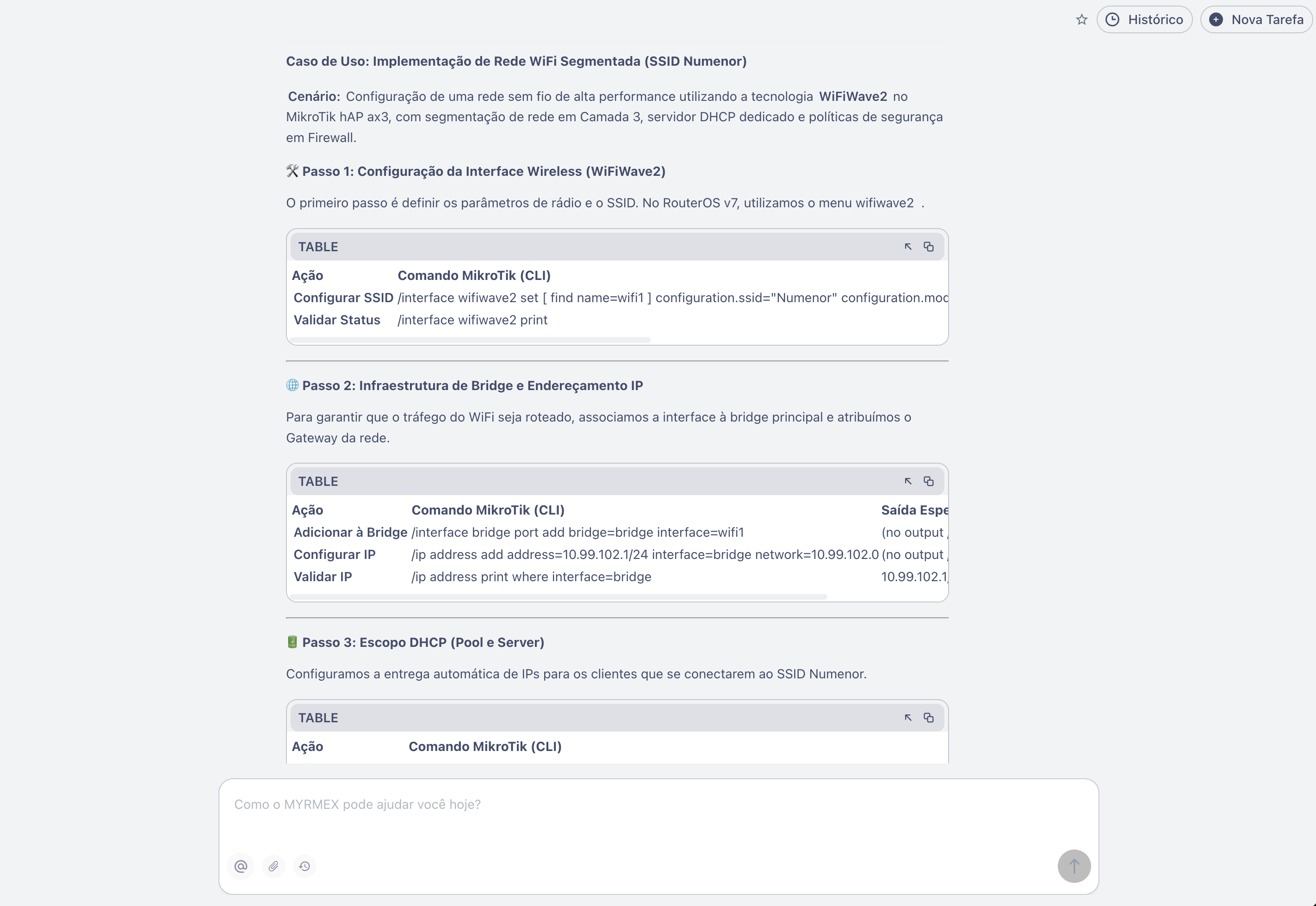
What Myrmex Did
1. Wireless Interface Configuration (WiFiWave2)
Myrmex started by configuring the WiFi radio with high-performance parameters:
/interface wifiwave2 set [ find name=wifi1 ] \
    configuration.ssid="Numenor" \
    configuration.mode=ap \
    channel.width=20/40/80mhz \
    disabled=no
Validation: Myrmex executed /interface wifiwave2 print and confirmed:
| Field | Value |
|---|---|
| Name | wifi1 |
| Mode | ap |
| SSID | Numenor |
| Channel Width | 20/40/80mhz |
2. Bridge Association and IP Addressing
To integrate WiFi into the network infrastructure, Myrmex added the interface to the bridge and configured the gateway:
# Add WiFi to bridge
/interface bridge port add bridge=bridge interface=wifi1

# Configure gateway of the new subnet
/ip address add address=10.99.102.1/24 interface=bridge network=10.99.102.0
Validation: Executed /ip address print where interface=bridge and confirmed the IP 10.99.102.1/24 active.
3. DHCP Server Configuration
Myrmex created the IP pool and the DHCP server with extended lease:
# Create address pool
/ip pool add name=NUMENOR ranges=10.99.102.2-10.99.102.30

# Create DHCP server
/ip dhcp-server add \
    name=Numenor \
    address-pool=NUMENOR \
    interface=bridge \
    lease-time=1w10m

# Configure DHCP network
/ip dhcp-server network add \
    address=10.99.102.0/24 \
    gateway=10.99.102.1 \
    dns-server=8.8.8.8,8.8.4.4
Why 1-week lease? Myrmex chose this time because the Numenor network will be used by fixed or long-stay devices, reducing unnecessary renewals.
Validation: Executed /ip dhcp-server print and confirmed:
| Name | Interface | Pool | Lease Time |
|---|---|---|---|
| Numenor | bridge | NUMENOR | 1w10m |
4. Security: NAT and Firewall
Finally, Myrmex configured internet access and security rules:
# NAT for internet access
/ip firewall nat add \
    action=masquerade \
    chain=srcnat \
    out-interface-list=WAN \
    comment="General NAT"

# Allow Numenor subnet traffic
/ip firewall filter add \
    chain=input \
    action=accept \
    src-address=10.99.102.0/24 \
    comment="Allow Numenor subnet"
Validation: Executed /ip firewall filter print where comment~"Numenor" and confirmed the active rule.
Final Validation by Myrmex
After applying all settings, Myrmex ran a battery of tests:
| Test | Command Executed | Result |
|---|---|---|
| WiFi active | /interface wifiwave2 print | ✅ SSID "Numenor" operational |
| Bridge configured | /interface bridge port print | ✅ wifi1 in bridge |
| IP gateway | /ip address print | ✅ 10.99.102.1/24 active |
| DHCP Pool | /ip pool print | ✅ Range 10.99.102.2-30 |
| DHCP Server | /ip dhcp-server print | ✅ Lease 1w10m |
| NAT active | /ip firewall nat print | ✅ Masquerade configured |
| Firewall | /ip firewall filter print | ✅ Subnet allowed |
Myrmex also tested connectivity by simulating a client on the Numenor network.
Result
With the configuration applied and validated by Myrmex:
- ✅ Isolation: Network operating on subnet
10.99.102.0/24, separated from the main network - ✅ Performance: WiFiWave2 with bandwidth up to 80MHz
- ✅ Persistence: 1-week DHCP lease, ideal for fixed devices
- ✅ Security: NAT configured and access controlled via Firewall
Important Tip
Before applying WiFiWave2 settings, verify if the package is installed with
/system package print. If not, download it at mikrotik.com and reboot the device.
Prompt Variations
The same result can be adapted for different scenarios:
For multiple SSIDs (Guest + Corporate):
...create two SSIDs: "Corporate" on subnet 10.99.100.0/24 and "Guest" on 10.99.200.0/24, with isolation between them...
For WiFi with VLAN tagging:
...associate SSID "Numenor" to VLAN 102 and ensure traffic is tagged on the bridge...
To limit bandwidth per client:
...add simple Queue limiting each client of Numenor network to 10Mbps download and 5Mbps upload...
Want to create segmented WiFi networks in minutes? Try Myrmex and let AI configure and validate your infrastructure automatically.